Your first ten minutes
What the app is for, the one loop that ties it together, how to sign in, how to read any screen, and what your role lets you do.
1 · What Voltara Intelligence is
Voltara Intelligence is the operations and maintenance platform for the solar, battery and diesel plants in the fleet. It does five jobs, and every one of its modules belongs to one of them:Counted from the app's own menu rules on 15 October 2026: an administrator sees 74 modules in nine navigation groups, corporate 69, plant 52, and a technician 40 in eight groups.
| Job | In plain words | Where it lives in the menu |
|---|---|---|
| Watch | Live power, alarms, weather and plant health, for every plant you can see | Live Ops |
| Maintain | Every job on a plant is a work order, planned or unplanned | Maintenance Hub |
| Keep people safe | Permits to work, isolations (LOTO), hazard analyses, incidents | Safety Center |
| Look after assets | The equipment register, warranties, spare parts, purchasing | Asset Vault |
| Report | Performance, budget, money and KPIs, for the plant and the client | Intelligence, Finance |
2 · The one loop
The five jobs are not separate tools. They form one loop, and almost everything you do in the app is one step of it:
Two facts make the loop work. First, a critical alarm that nobody deals with becomes a work order by itself after about 30 minutes (unless its alarm rule says it never needs a job, or a person cancelled the job it had). Second, the app will not let anyone start, complete or close a job while its safety items (permit, isolation, hazard analysis, risk assessment, toolbox talk) are still open. You will meet that safety gate in Lesson 4.Checked in the app on 15 October 2026: completing a job with no hazard analysis, permit or toolbox talk was refused with “Safety gate: this work order cannot be completed until the safety pack is signed off. Outstanding: …”
3 · Signing in
- Open the address your administrator gave you, in Chrome, Edge or Safari.
- Enter your email or username and your password, then Sign In.
- If two-factor authentication is on for your account, type the 6-digit code from your authenticator app.
Where you land depends on the device. On a phone you go straight to the mobile app screen. On a computer you go to the landing page you chose in My Preferences, or, if you never chose one, to your role's dashboard. You are signed out after 30 minutes without activity (your administrator can change this) and after 8 hours whatever you do, so save your work as you go.Checked on 15 October 2026: signing in with an email address and with a username both work. The landing page is set in My Preferences → Default landing page (the printed guide wrongly says it cannot be changed).
4 · Reading any screen
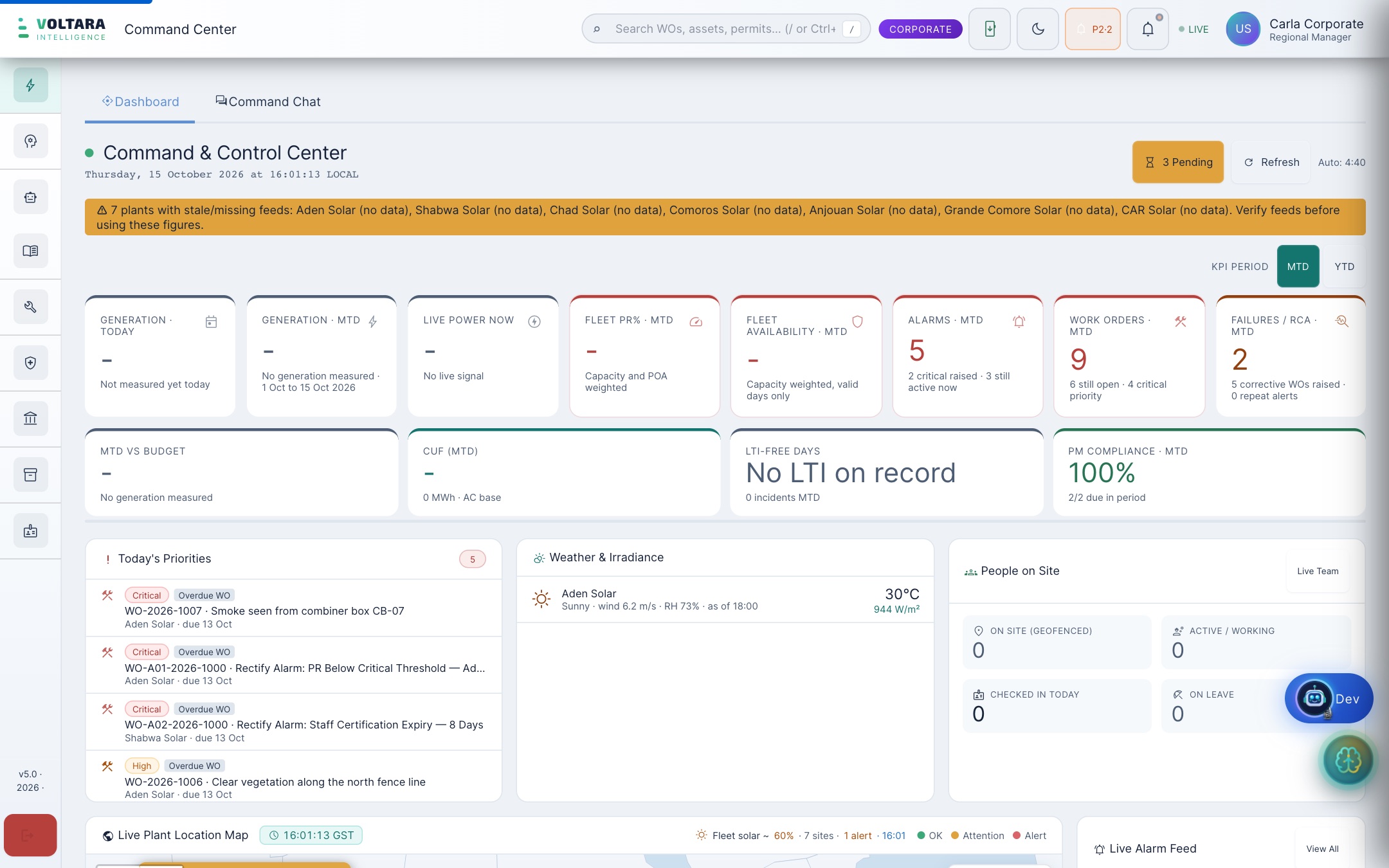
Every module sits in the same frame. Learn it once and every module is half familiar. This is the Command Center as a manager sees it:
 1
2
3
4
5
6
7
8
9
10
11
1
2
3
4
5
6
7
8
9
10
11
- 1Search across work orders, assets and permits. Press
/to jump to it. - 2Role chip: the access level you are using now. If something is missing, look here first.
- 3Get the app: download or update the Android app.
- 4Alarm chip: live count of priority 1 and 2 alarms on your plants. Tap to open them.
- 5Notifications: a dot means unread.
- 6LIVE: the page is updating. If it stops, reload the page.
- 7Account: your name, job title and plant; preferences, password and sign out.
- 8Group rail: the navigation groups. Hover to open one.
- 9Data warning banner: plants whose data is late or missing. Read this before any number below it.
- 10Period: MTD (month to date) or YTD (year to date). Every tile follows it.
- 11Today's priorities: what needs action now, most serious first. Click an entry to open it.
Screenshot from the training copy of the app, signed in as a corporate user, 15 October 2026. The theme switch (moon icon) sits between 3 and 4. Your figures will differ; the layout will not.
Look at the banner in this screenshot: “7 plants with stale/missing feeds… Verify feeds before using these figures.” In the training copy no plant sends live data, so every generation tile shows a dash. That sentence matters more than any tile below it. When a plant's data is late, every total that includes it is incomplete. Lesson 8 shows you how to read the numbers safely.
5 · What your role lets you do
The app has 30 job titles, and each one maps to one of four access levels. The level decides which plants you see, which menu you get and which steps of a work order you may take. The same home page even has a different name at each level.Read from the app's role map on 15 October 2026: 15 job titles are site level, 9 plant, 6 corporate, plus the administrator. Work-order rights checked against the app's rules on 2026-10-13. For example, every engineer except the SCADA engineer (plant) and the performance engineer (corporate) is at site level.
| Level | Typical job titles | Sees | Home page in the menu | Your part of a work order |
|---|---|---|---|---|
| Site | Technician; maintenance, electrical, mechanical and HV engineers; warehouse user; cleaning, vegetation and housekeeping staff; helper, driver, medic, guard; contractor | Own plant | My Tasks & Dashboard | Start and complete the jobs assigned to you |
| Plant | Plant manager and assistant; supervisor; HSE officer and supervisor; HV manager; SCADA engineer; admin and HR officers | Own plant (or plants granted) | Operations Dashboard | Approve, assign, put on hold, verify, close (and start or complete if needed) |
| Corporate | Performance engineer; regional and portfolio managers; COO, CEO; asset owner | The fleet (an asset owner sees only their own plants) | Command Center | Oversight. Approvers sign the higher approval levels in Work Order Approvals |
| Admin | Administrator | Everything | Command Center | Every step, including cancelling a work order |
Two rules hold at every level. Nobody approves a work order they raised themselves. And the person who checks finished work (verify) must not be the person who did it.
If something you expect is not there
- Check the role chip (2). Is it the level you expected?
- Check the plant under your name (7). Lists only show your plants.
- The module may be switched off for your plant. Ask your administrator, and tell them the module name, the plant and what you expected to see.
6 · Practice
Put a work order's life in order
Every work order climbs the same ladder, whatever type it is. Use the arrows, then press Check.
Which level is the lowest that can do this?
From memory, without scrolling up: (1) Name the five jobs the app does. (2) What should you read on a dashboard before any number? (3) A technician cannot press Start on their job. Name the most likely reason.
Where to go next
Follow the track for your role on the course map. Everyone does Lesson 2 (work orders) next. Keep the quick-start card and the glossary open while you work.
Reference: Quick start · Glossary · Next: Lesson 2, A work order from start to finish