A work order, start to finish
One real job followed through every step, who does each step, and the six points where the app will stop you.
Warm-up from Lesson 1, from memory: (1) Say the seven steps of the work-order ladder. (2) Which two things may you never do with your own job?
Everything below was done for real on 15 October 2026, in a training copy of the app running the current code, with five training accounts: Sara (supervisor), Paul (plant manager), Carla (corporate), Adam (admin) and Tariq (technician), all at Aden Solar. The messages in quotation marks are the app's own words.The training copy has no live plant data, so a few panels in the screenshots are empty. The buttons, steps, rules and messages are the real ones.
1 · Raise it
Who: anyone at site, plant or admin level. Corporate users cannot raise work orders. Where: Maintenance Hub → Work Order Center → + Log Corrective / PM Work Order (technicians also have New WO under Quick Actions on their home page).
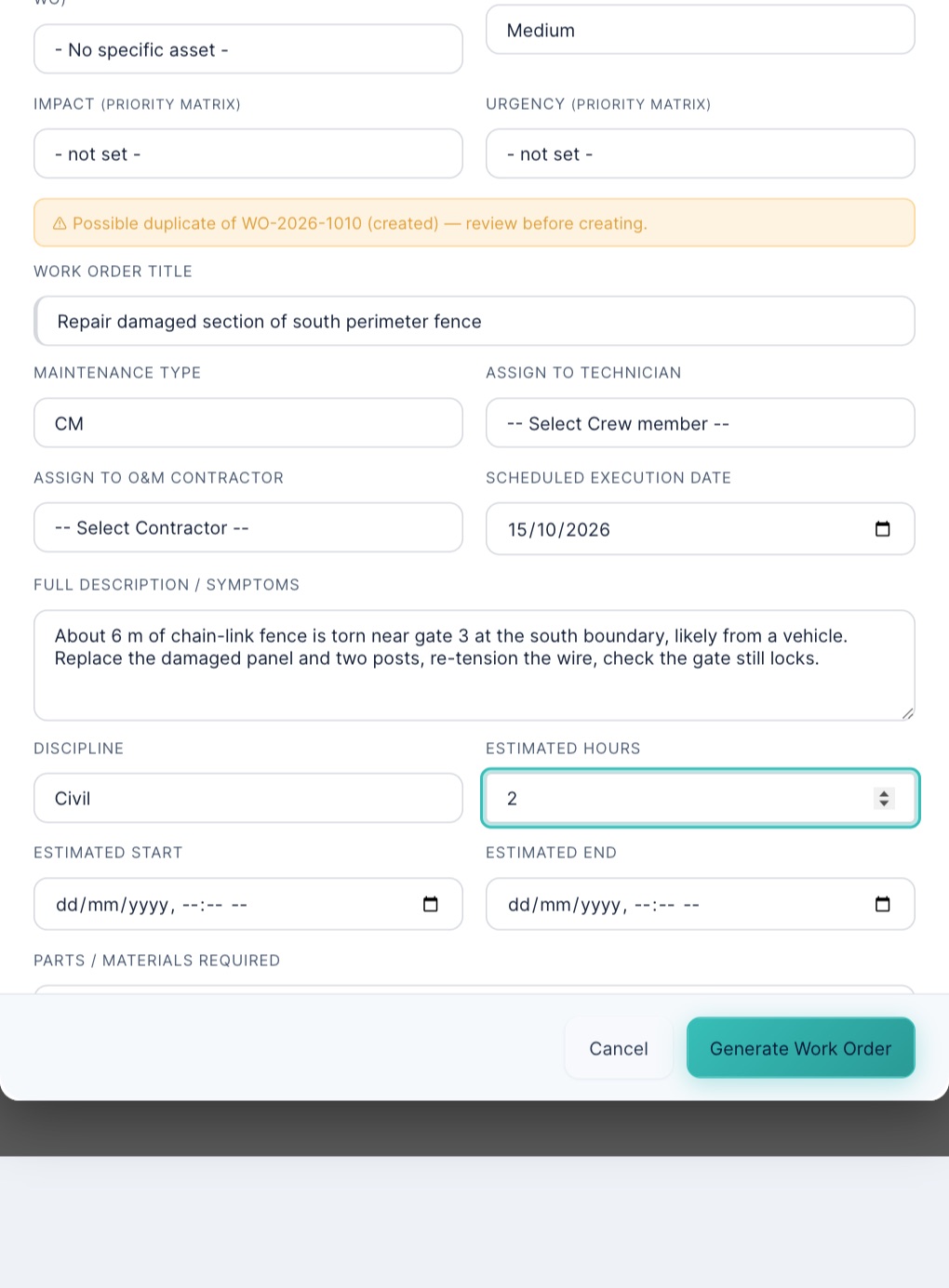
- Type says what kind of job it is: PM (preventive), CM (corrective), Breakdown, Predictive or Emergency.
- Priority sets the deadline, counted from the moment you save: critical 4 hours, high 1 day, medium 3 days, low 7 days. You can set it directly, or pick Impact and Urgency and let the app work it out.
- Discipline and the asset tell the app how dangerous the job is (see step 4).
When you save, the job gets a number (here WO-2026-1011) and the status created. The app also builds a safety pack for it: a draft job hazard analysis (JHA), a risk assessment and a planned toolbox talk, plus a permit to work if the job is electrical or otherwise high risk.
2 · Approve it
Who: anyone except the person who raised it. Sara tried to approve her own job and the app said: “segregation: the raiser cannot approve”. A job needs one to three sign-offs. Its value sets the starting point, and its priority can only raise it:Read from the app's approval rules on 15 October 2026. With the standard value bands: under $5,000 one level, from $5,000 two, from $50,000 three. A job with no cost estimate is valued at its estimated hours × $50. Your administrator can change the bands; if none apply at all, the app asks for all three.
- Low or medium priority: the value decides (most everyday jobs need one level).
- High priority: at least two levels.
- Critical or Emergency: always all three.
| Level | Signed by |
|---|---|
| 1 | Plant level (supervisor, plant manager) |
| 2 | Corporate, in Work Order Approvals |
| 3 | Admin |
The fence job was medium priority with 2 estimated hours, so it needed one level: Paul approved it and it became approved at once (the timeline says “Fully approved (1 level(s))”). On a bigger or more urgent job the status stays created until the last level signs. If you approve and nothing seems to change, the job is waiting for the next level.
3 · Assign it
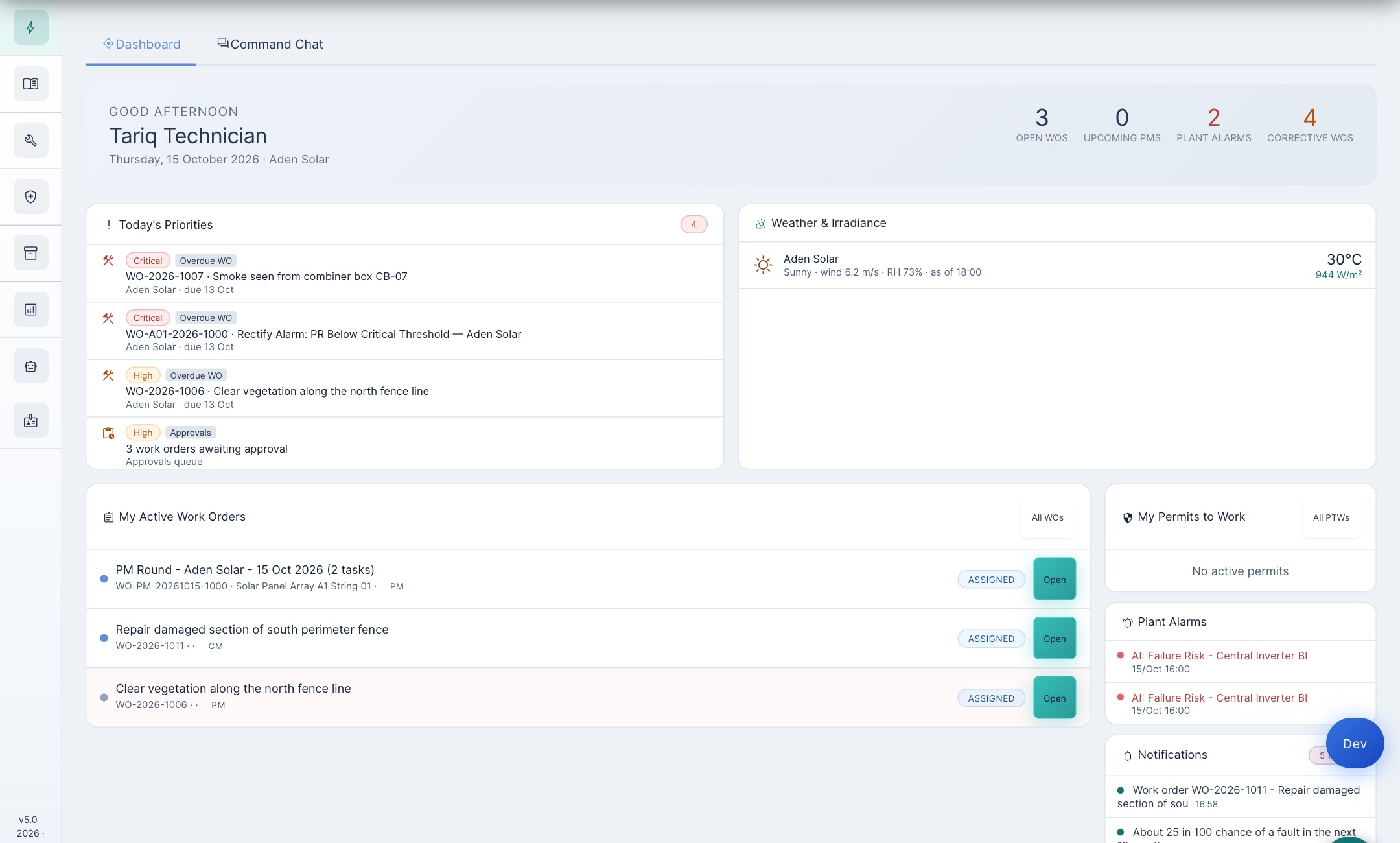
Who: plant level or admin (supervisor, plant manager). Where: the Assign button on the job's row, or the Dispatch tab. The picker lists technicians with their workload (“0 open”) and warns when someone lacks a matching skill (“no Inverter Maintenance”). Status becomes assigned, and the job appears under My Active Work Orders on the technician's home page:
4 · Make it safe, then start
Who: the technician presses Start Work, but other people sign off parts of the safety pack first. Pressing Start opens a Pre-Start Safety Verification. This is what Tariq saw on the inverter job, before anyone had done the safety paperwork:
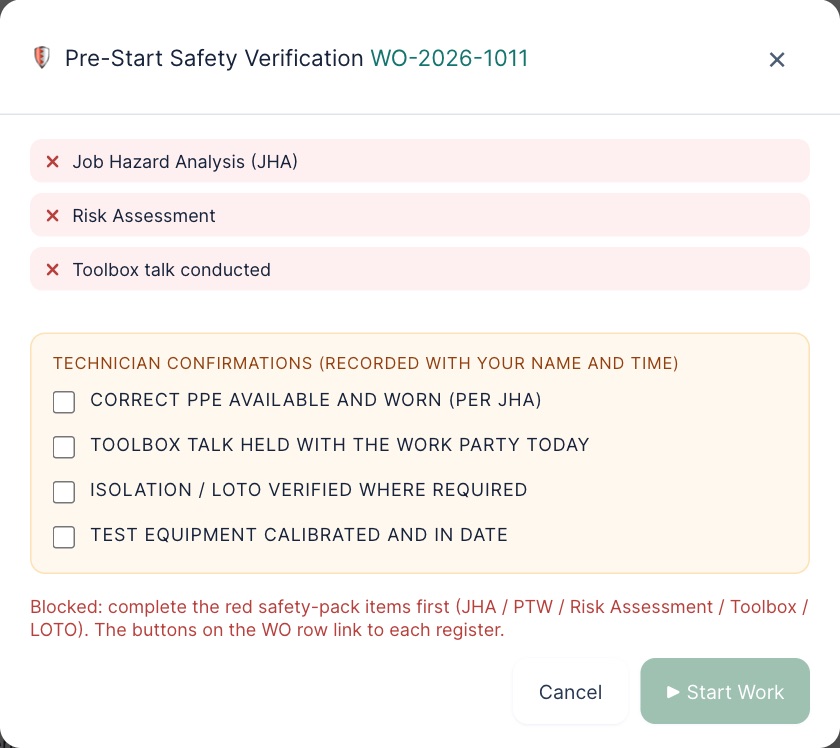
On the low-risk fence job the pack had three items, and each was signed off by a different person:
- Job hazard analysis: the app drafted it; Tariq submitted it; Paul (plant level) approved it. Tariq could not approve it himself. (HSE Center → JHA.)
- Risk assessment: reviewed and marked mitigated at plant level.
- Toolbox talk: Sara recorded the talk with its two attendees.
With all three green, Tariq ticked the four confirmations (PPE worn, toolbox talk held, isolation verified where needed, test equipment in date), which are recorded with his name and the time. Start Work turned green, and the job moved to in progress. Electrical jobs add a permit to work and often an isolation (LOTO); Lesson 4 covers those.
5 · Do it and complete it
Who: the assigned technician. While working, record photos and parts, and answer every step of the job's Checklist (the row's Checklist button, or the phone). The app refuses to complete a job with checklist steps left blank: “Checklist gate: this work order cannot be completed - 6 of 6 steps not recorded at all.” Then press Complete:
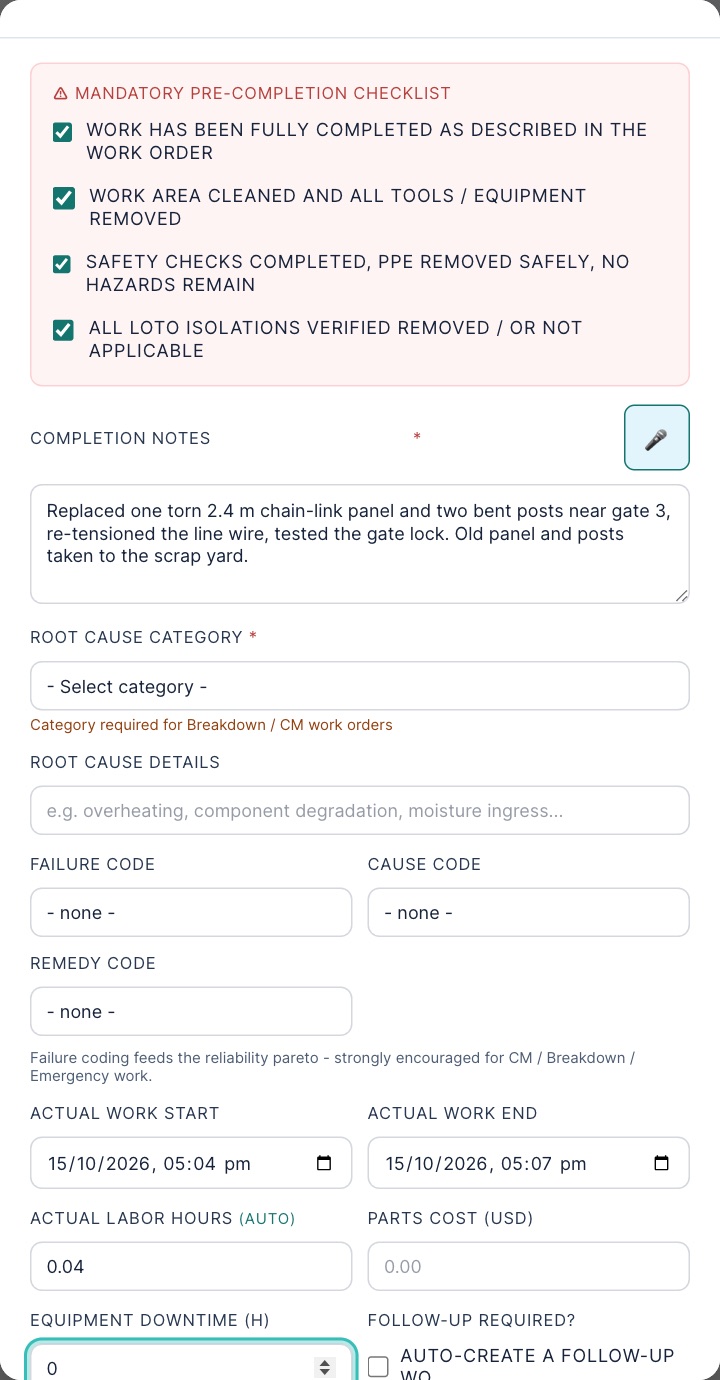
Write notes a stranger could understand a year from now: what you found, what you did, what you left behind. For corrective, breakdown and emergency work, fill in the failure codes too; they feed the reliability reports. A corrective job also needs equipment downtime hours: “Enter 0 if the fault caused no production loss.” Status becomes completed.
6 · Verify and close
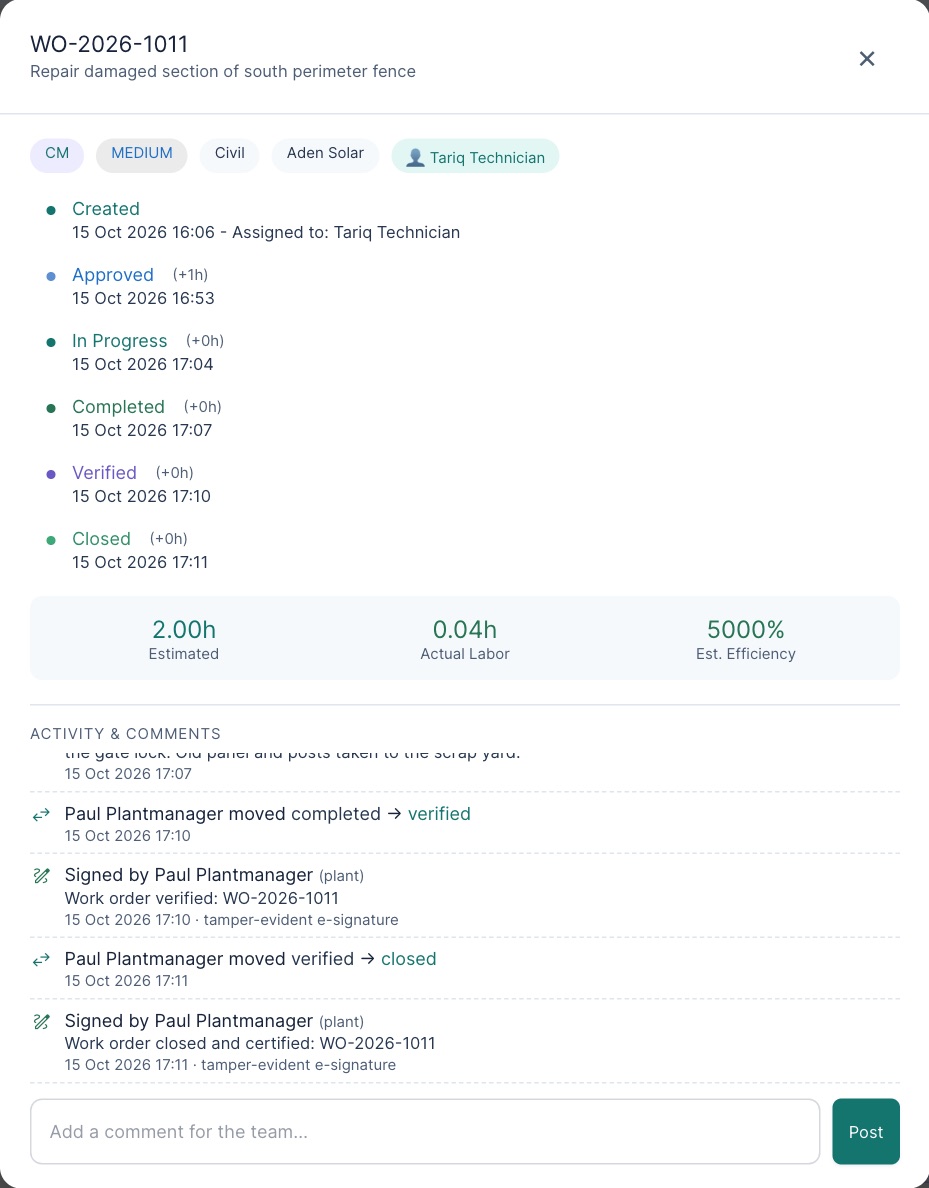
Who: plant level, and never the person who did the work. Tariq tried to verify his own job: “You do not have permission to set a WO to 'verified'”. Paul checked the work on site and pressed Verify. For corrective work the app wants the failure, cause and remedy codes at this point: “Cannot verify without a failure code, cause code, remedy code.” Then he closed it. Closing straight from completed is refused: “WO must be verified before closing (Complete → Verify → Close).” Verify and close are each stamped as Paul's electronic signature. The timeline (the Timeline button on any row) shows the whole life of the job: The timeline (the Timeline button on any row) shows the whole life of the job:
7 · Practice
Allowed or refused?
All eight cases were tried in the training copy on 15 October 2026, and the app's own reply is quoted.
From memory: (1) Name the three safety-pack items the fence job needed, and who signed off each one. (2) A critical job: how many approval levels, and who signs each? (3) Paul says “I approved it but it is still created”. What is the most likely reason?
Your part, by role
| You are | You do |
|---|---|
| field Technician | Raise jobs you find. Submit the JHA. Tick the four pre-start confirmations, start, record photos and parts, complete with notes and codes. |
| plant Supervisor, plant manager, HSE | Approve level 1 (not your own). Assign. Approve JHAs, mitigate risk assessments, record toolbox talks. Verify (not your own work) with the failure codes, and close. Cancel a job, with a reason. |
| corporate Approver | Sign level 2 in Work Order Approvals. You cannot raise or move jobs. |
| admin | Sign level 3. Everything a plant user can do, at every plant. |
Reference: Work order card · Glossary · Previous: Lesson 1 · Next: Lesson 3, Alarms: from warning to work order