Alarms: from warning to work order
How to read an alarm's priority, which of the five buttons to press, and what the app does by itself when nobody presses anything.
Warm-up, from memory: (1) What does the alarm chip in the top bar count? (Lesson 1) (2) A new job has critical priority. How many approval levels does it need before anyone can be assigned? (Lesson 2)
Everything below was tried on 15 October 2026 in the training copy of the app, running the current code, with the same accounts as Lesson 2 (Sara the supervisor, Tariq the technician, Carla from corporate) and six made-up alarms at Aden Solar, one of them a stock alarm. Messages in quotation marks are the app's own words.The rules about who receives emails and Teams messages come from reading the app's code: the training copy sends no mail.
1 · Where alarms come from
An alarm is the app saying “something at this plant needs a person”. Most are raised automatically: rules that test plant data (the rules are listed in the Rule Master tab), messages from the plant's control system or the inverter maker's cloud, and checks on stock, certificates and the data feed itself. Admin and corporate users can also raise one by hand (Raise Manual Alarm, at the bottom of the page).
Every alarm belongs to one plant, and often to one asset. You see only your own plants' alarms, and you cannot act on anyone else's. When Tariq tried to acknowledge an alarm at Shabwa, the app refused: “Access denied: alarm belongs to another plant”.
Where: Live Ops → Alarm Management, first tab Alarm Center. Or tap the alarm chip in the top bar.
2 · Read the priority
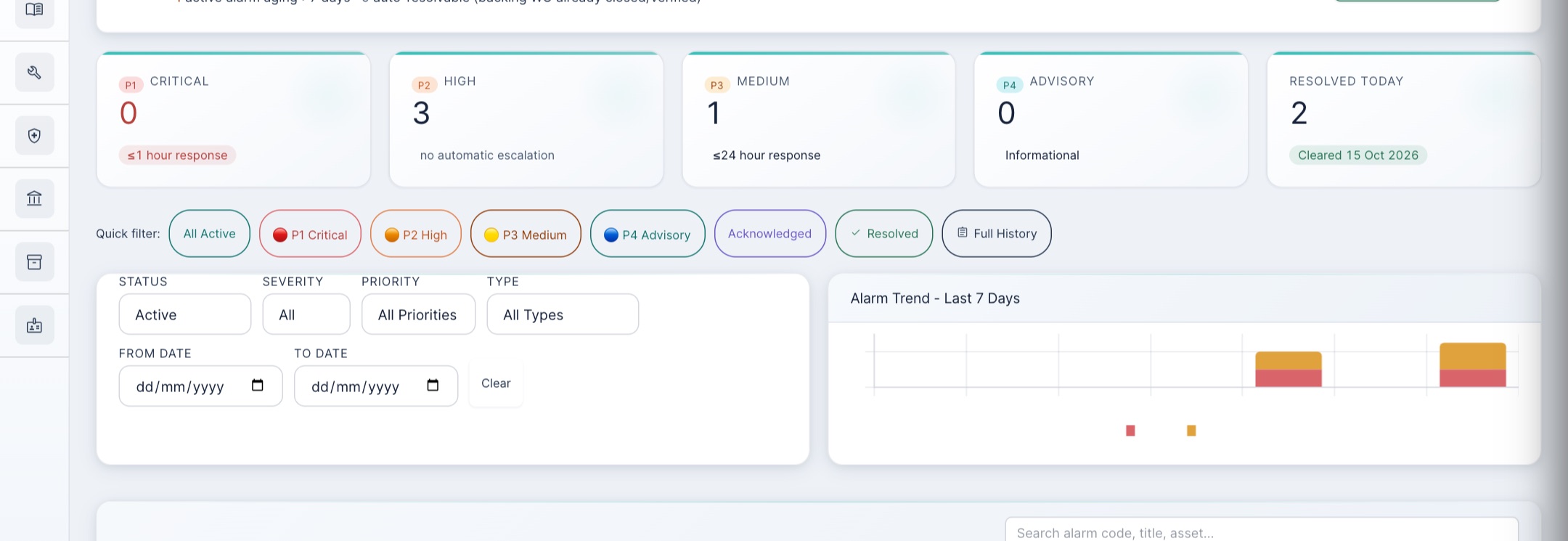
The app works out an alarm's priority from two things: its severity (critical, warning or info) and its type (equipment health, safety, battery, performance, stock and so on). You cannot change it. What the app does about each priority is very different:
| Priority | Which alarms | What the app does by itself |
|---|---|---|
| P1 Critical | Every critical alarm | Announces it at once (in-app bell, Teams, email). Raises or links a work order after 30 minutes. Chases it after an hour if nobody has acknowledged it. Details in section 5. |
| P2 High | Warnings about equipment health, safety or the battery | Nothing automatic. The tile says so: “no automatic escalation”. |
| P3 Medium | All other warnings (performance, stock, finance, system) | Nothing automatic either, even though its tile says “≤24 hour response”. |
| P4 Advisory | Information only | Nothing. Recorded for trends. |
3 · The five things you can do
 1
2
3
4
5
6
7
8
9
1
2
3
4
5
6
7
8
9
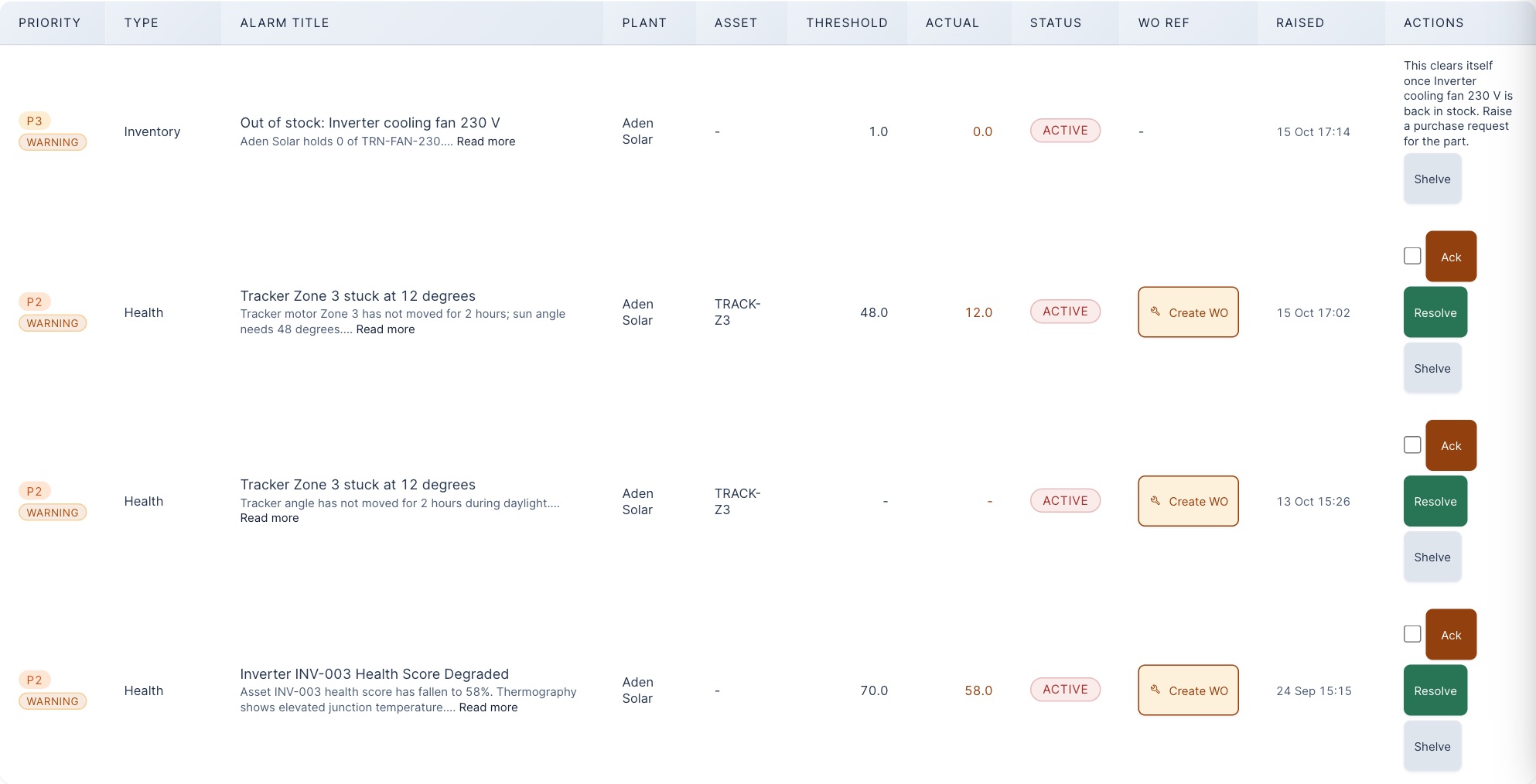
- 1Priority (P1 to P4) and severity.
- 2Threshold and actual: the limit the rule tests and the value that crossed it (here, tracker angle 12 degrees against the 48 it should be at).
- 3Status: active, acknowledged, resolved or suppressed.
- 4Create WO, or the number of the job already linked.
- 5Ack, plus a tick box for acknowledging several at once.
- 6Resolve.
- 7Shelve.
- 8This tracker alarm had been shelved minutes earlier. Nothing on the row shows it (see the warning below).
- 9A stock alarm has no Create WO, Ack or Resolve: it clears itself when the part is back in stock, so raise a purchase request instead (Lesson 7).
| Button | What it means | Who | What the app did when we tried it |
|---|---|---|---|
| Ack (acknowledge) | “I own this.” Your name and the time go on the alarm, so nobody triages it twice. It stops the one-hour chase. | Everyone, own plant | “Alarm acknowledged”. A second press: “Alarm cannot be acknowledged (not active)”. On the stock alarm: “This clears itself once Inverter cooling fan 230 V is back in stock. Raise a purchase request for the part.” |
| Create WO | Raises a work order with the alarm's details filled in, links the two, and acknowledges the alarm in your name. | Site, plant, admin | Sara: WO-2026-1013 created. Carla (corporate) sees the button, but nothing is created. On a stock alarm the button is not there at all. |
| Resolve | “The condition has cleared.” The alarm leaves the active list. | Everyone, own plant | “Alarm resolved”. No note or proof is asked for; your name and the time are recorded. |
| Shelve | A temporary mute for a known problem: no more notifications until the time runs out. The alarm stays open. | Everyone, own plant | With no reason: “A reason is required to shelve an alarm.” For two weeks: “shelf duration may not exceed 7 days”. For 4 hours with a reason: “It stays open and will start notifying again by itself.” |
| Suppress | Removes the alarm from the active list permanently. | Admin only | Tariq: “Access denied: only an administrator may suppress an alarm.” |
Three habits follow from these rules:
- Acknowledge only what you will actually follow up. Pressing Ack just to quiet a critical alarm also stops the app from telling anyone more senior about it.
- If the alarm needs work, raise the job from the alarm. Create WO acknowledges the alarm anyway, and keeps the link between the two. The button is still there after someone has acknowledged the alarm (filter Acknowledged to find it); the acknowledgement then moves to your name.
- Resolve only when you have seen the condition clear. The app takes your word for it.
4 · Raise a work order from an alarm
 1
2
3
4
5
1
2
3
4
5
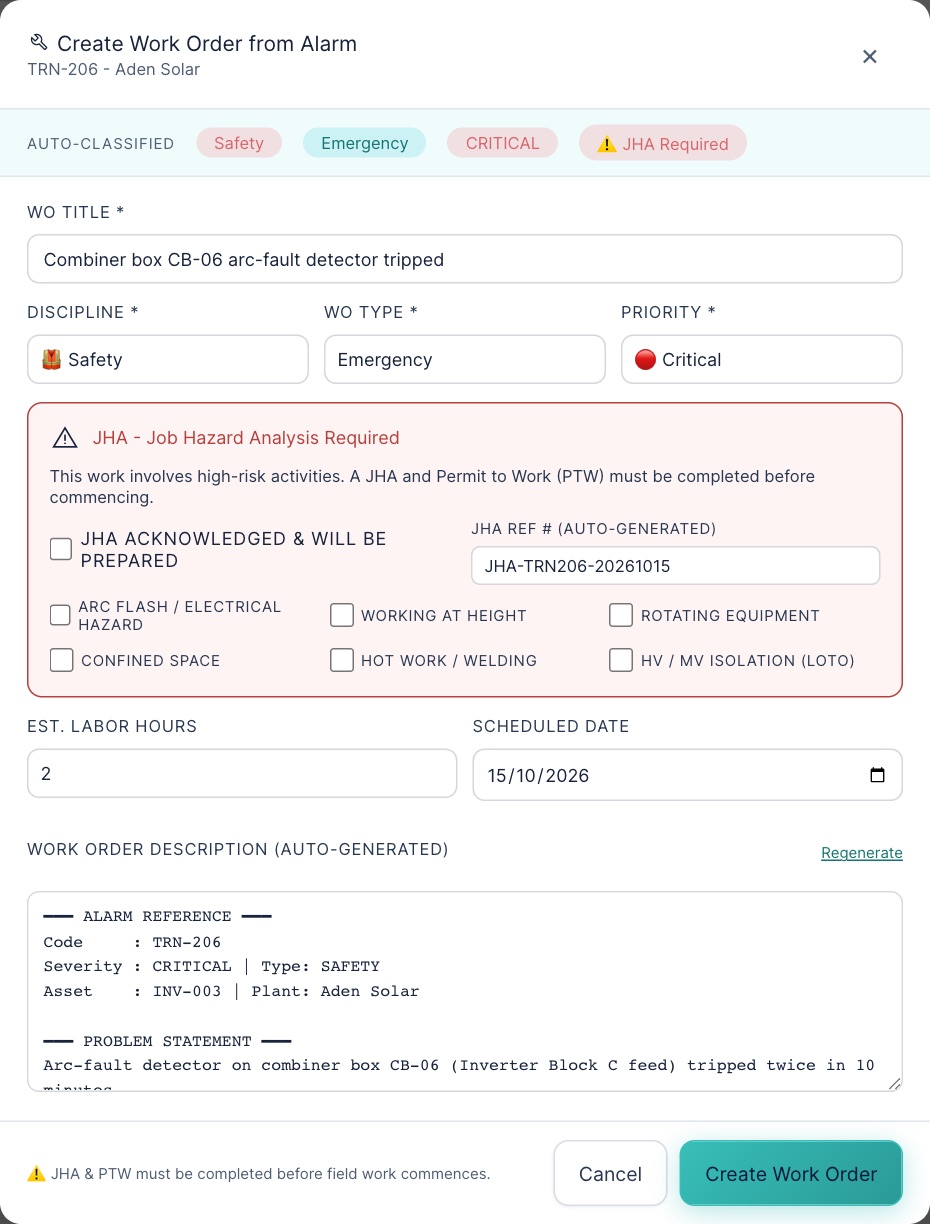
- 1The app's suggestion: a safety alarm becomes an Emergency job, critical priority, with a JHA needed.
- 2You can change discipline, type and priority. Check them.
- 3JHA panel: tick the hazards you expect. The permit and JHA still have to be done before work starts.
- 4The description quotes the alarm (code, severity, asset, problem). Add what you know.
- 5Create Work Order: the job is created and the alarm is acknowledged in your name.
From here it is an ordinary work order (Lesson 2): it starts at created, needs its approvals before it can be assigned (three levels for critical priority), and gets its safety pack built automatically. In the alarm list, the row now shows the job number and its status instead of the Create WO button.
5 · What happens if nobody acts on a P1
We ran the 30-minute step in the training copy. It found one critical alarm with no job and linked it to a job that already existed:
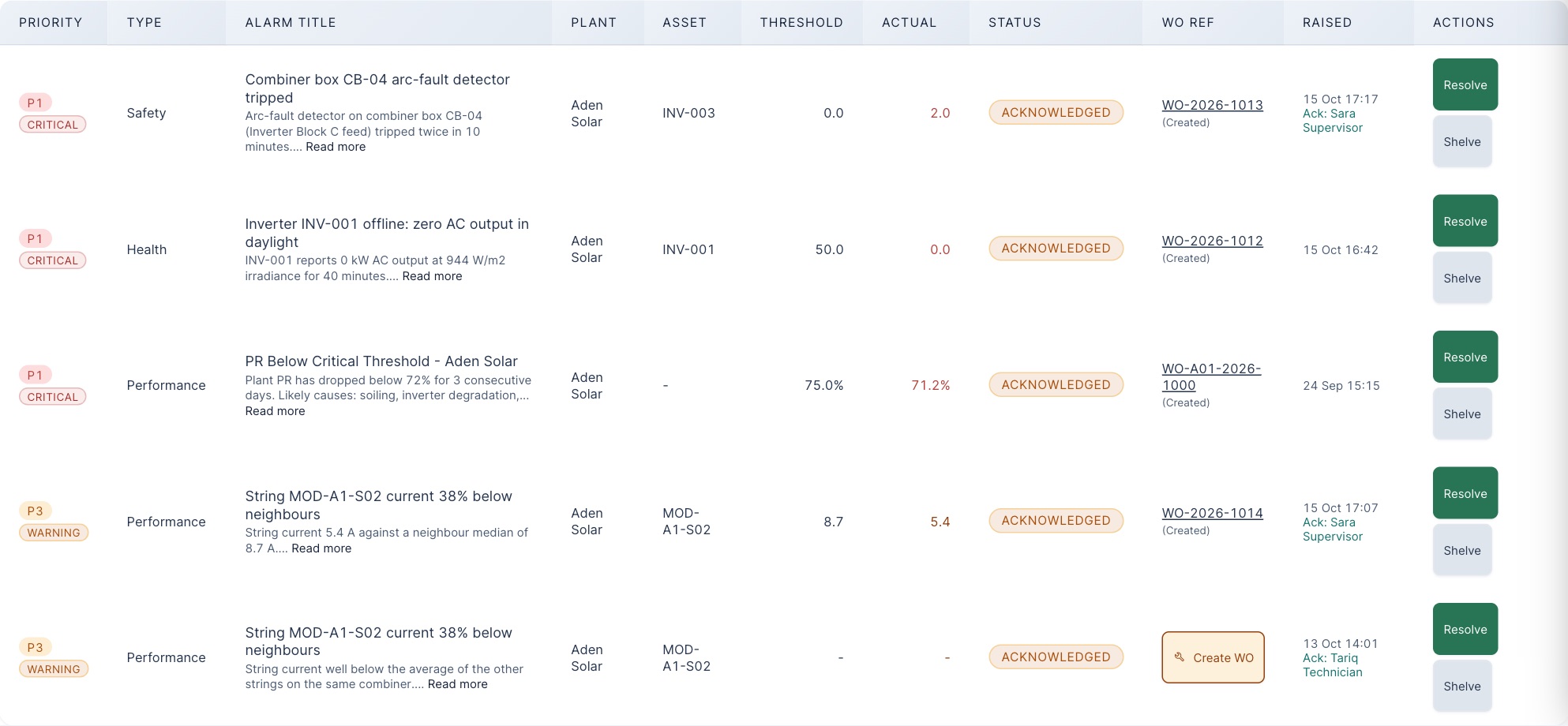
One more thing to know: because the 30-minute step marks the alarm acknowledged, the one-hour chase to senior people almost never happens for an alarm that gets a job. It is still the safety net for alarms that get no job at all, for example stock alarms.
6 · Practice
Which button?
Allowed or refused?
All nine were tried in the training copy on 15 October 2026.
Put the P1 timeline in order
From memory: (1) Why should you not press Ack just to quiet a critical alarm? (2) You acknowledged a string alarm this morning, and now you find it needs a repair. Where do you raise the job, and what changes on the alarm? (3) A P1 row shows WO-A01-2026-1000. What does the number tell you, and what should you check?
Your part, by role
| You are | You do |
|---|---|
| field Technician | Acknowledge alarms you are dealing with. Create WO when you find work is needed. Resolve only what you have seen clear. Shelve known problems, with a reason, and say so at handover. |
| plant Supervisor, plant manager | Watch P1 and P2 every shift. Create WOs from alarms and approve them. Check what automatic jobs were linked to. Use the closure discipline panel to clear alarms whose jobs are done. |
| corporate | Watch the fleet's P1 count and the alarms ageing more than 7 days. You can acknowledge, resolve and shelve, but you cannot raise jobs. |
| admin | Everything above, plus Suppress (permanent) and maintaining the rules in Rule Master. |
Reference: Alarm card · Glossary · Previous: Lesson 2 · Next: Lesson 4, Safety first