Field work on the phone
Checking in, doing a job from the phone, what survives a dead signal and what does not, and how to call for help.
Warm-up, from memory: (1) Which four things does the technician confirm before Start Work? (Lesson 4) (2) Who may remove a lock you fitted? (Lesson 4)
Everything below was tried on 16 October 2026 in the training copy, running the current code, as Tariq the technician, on a simulated Android phone with its position set near Aden Solar and then 10 km away. Messages in quotation marks are the app's own words.The phone was simulated in a browser. The Android app shows the same screens, because it is a wrapper around them.
1 · The app
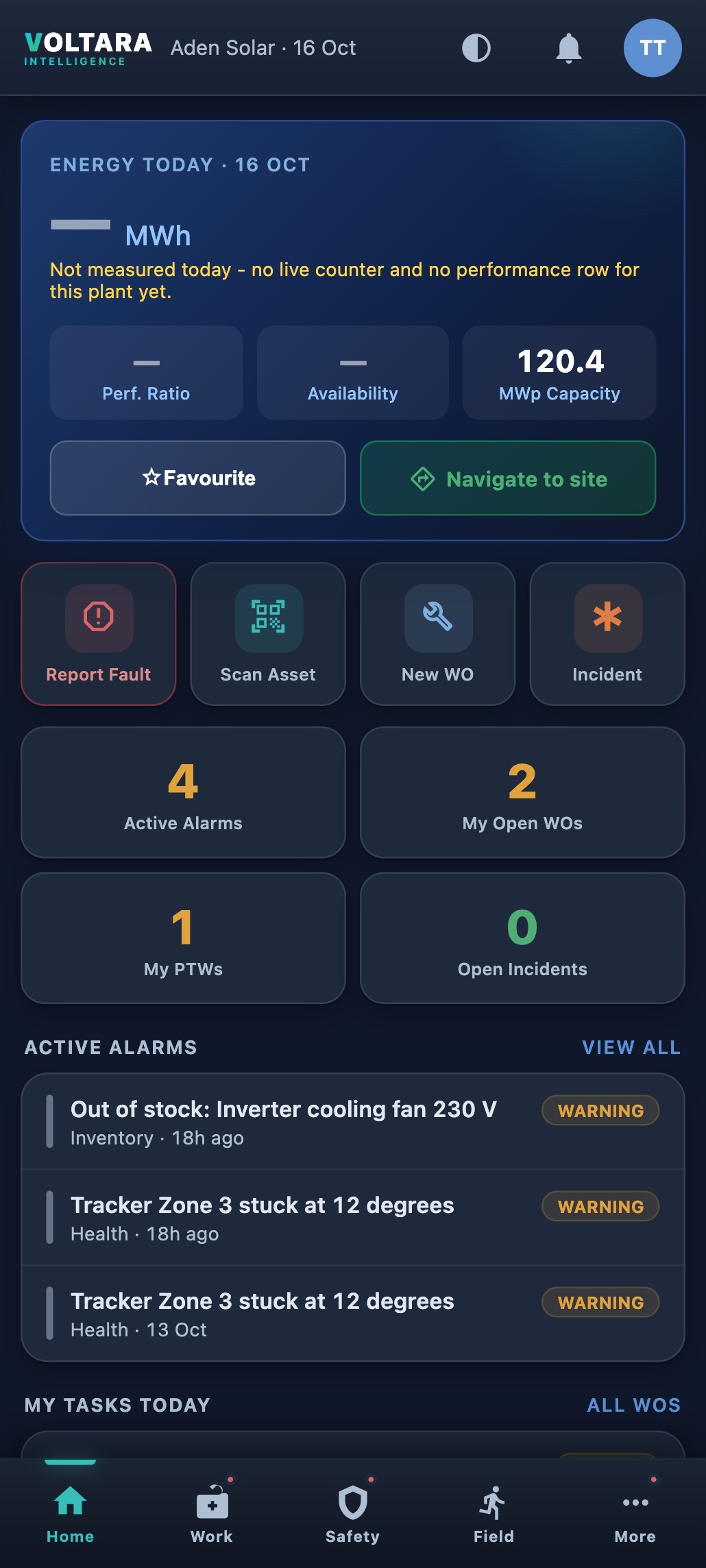
The Android app comes from Get the app in the top bar (Lesson 1). It shows the same Voltara Intelligence screens, laid out for one hand and bright sun, and adds notifications, the camera and GPS. Signing in on a phone opens the phone home screen.
2 · Check in and check out
Check-in is on the phone home screen. It records that you are at your plant, and it is strict:
| The app checks | What happened when we tried |
|---|---|
| You are on a phone | On a computer the button is not there: “Check-in and check-out work only from your one registered phone.” |
| You are inside the plant's boundary (at least 4 km round the plant; bigger for big sites) | 10 km away: “Check-in blocked: you are 10.01km from Aden Solar. You must be within 4.00km of your assigned plant.” 600 m away: “Checked in at 11:03. Distance from plant: 597m. Late arrival recorded.” |
| Your GPS is real and good enough | Refused if the position is 0/0, the accuracy is worse than 1.5 km, or fake GPS is switched on (from the app's code). |
| It is your phone | The first phone you check in with becomes your registered phone. Another phone is refused (from the code). |
Check out before you leave. Check-out is never blocked, but if you are outside the boundary or your GPS is poor, the position is thrown away and flagged. Arrivals after your shift start are marked late automatically.
3 · Your job on the phone
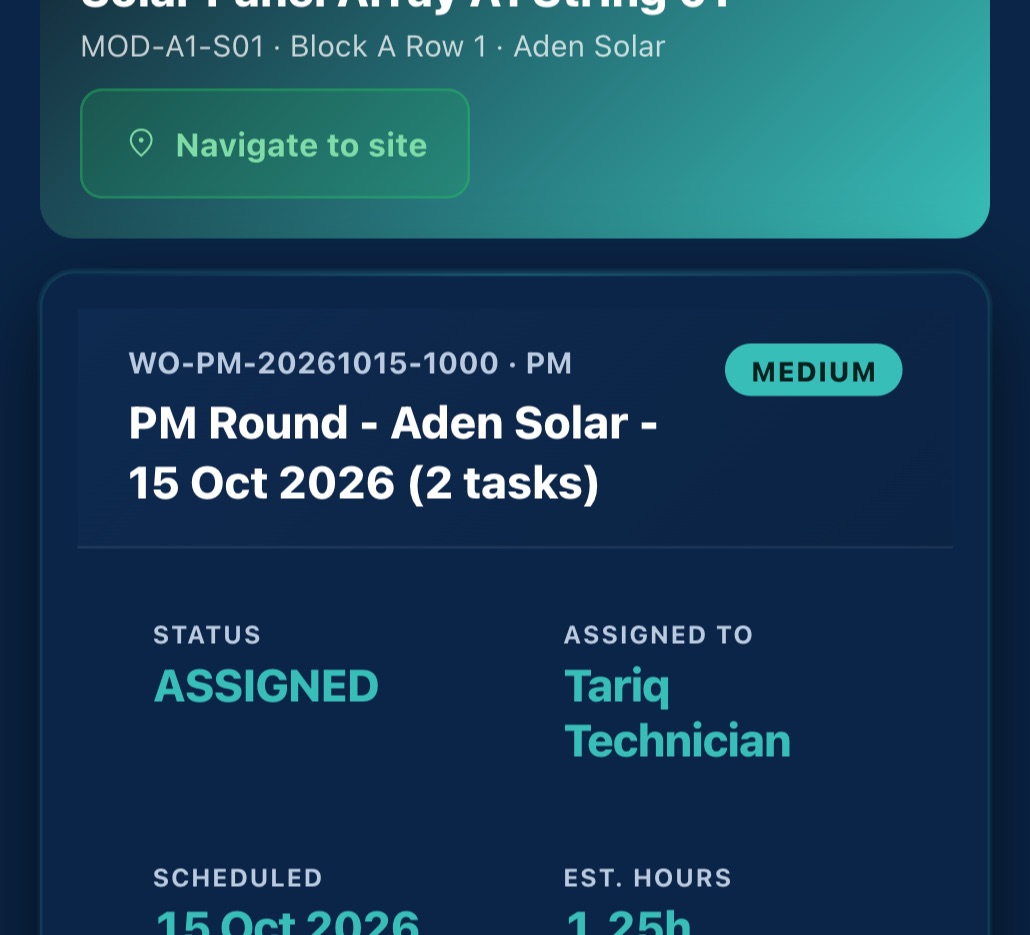
Work tab, or My Work Orders: your assigned jobs, by priority. Open one and work down the page:
- Navigate to site opens your maps app. Scan Asset QR confirms you are at the right equipment.
- Before photos. The job has three photo groups: before, during and after. Photos are the evidence a warranty claim or an audit will need later.
- PPE selfie check (optional): a selfie checked on the phone itself, so it works with no signal.
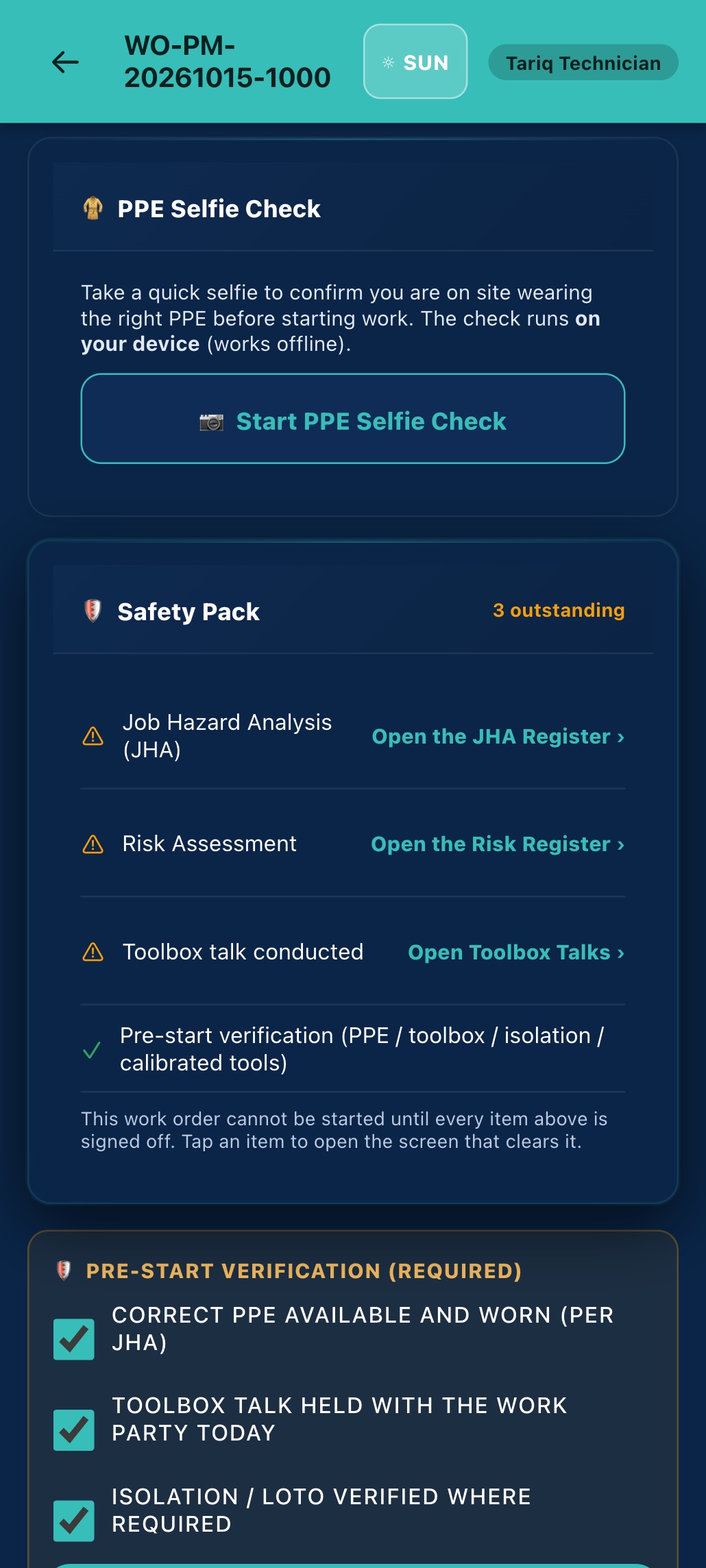
- Safety Pack. The phone lists the same open items as the computer (Lesson 4), each with a link to the screen that clears it.
- Pre-start and Start Work. Tick all four, then Start Work Now. Your GPS position is recorded with the start if the phone can get one.
- Complete. Actual labour hours are compulsory on the phone (“it cannot be left blank”), plus downtime hours for corrective work, notes, the after photos and the three safety statements (PPE and no hazards left; locks removed or not needed; area clear). Fill in the failure, cause and remedy codes too: they look optional on the phone, but the supervisor cannot verify a corrective job without them.
4 · No signal: what is kept and what is not
Only some things are held on the phone and sent later. We tried it:
| Kept on the phone and sent later | Needs a signal at the moment you press it |
|---|---|
| Job photos (before, during, after). Tested: the phone said the photo was “saved offline” and “will upload when you are back online”, and it arrived on the job as soon as the signal returned. | Start Work, Complete and every other status change. Tested: “No signal - not sent. Nothing has been lost: stay on this page and tap Save again once you are back online.” |
| Checklist step results, the PPE selfie check, photo markups, the work timer | Check-in and check-out, approvals, permits and LOTO |
So in a dead zone: take your photos and fill in the checklist as you go, but stay on the job's page and press Start or Save again where there is signal. Do not close the page, or what you typed into the form is lost.
Before you leave site, look at the badge at the top of the phone home screen. Offline · 2 queued or 2 pending sync means two things exist only on your phone. Wait until it disappears. If someone else signs in on a shared tablet, items you queued are held, not sent under their name, until you sign in again.
5 · Calling for help
- SOS: More → My Team - Live → SOS. It alerts every active colleague at your plant and the fleet managers at once, with your position, so the nearest person can come. Nobody at other plants is told.
- Incident: the quick action on the home screen, for anything that happened or nearly happened.
- Your position. The first time, the app asks to share your site location (an Enable / Not now bar under the page). If you tap Enable, your answer is remembered and every page of the app you have open sends your position, and your phone's battery level, while you are inside the plant boundary. Leaving the boundary sends one “off-site” marker and then nothing. When the app is closed nothing is sent: the Android app has no permission to track you in the background. If you work alone, keep the app open.
6 · Practice
Kept offline, or needs a signal?
Check-in: allowed or refused?
From memory: (1) You finish a job in a dead zone and press Complete. What do you see, and what must you do? (2) Your phone broke and you have a new one. Who resets it? (3) What do you check on the home screen before leaving a site with no coverage?
Your part, by role
| You are | You do |
|---|---|
| field Technician, cleaner, helper | Check in on site and out before leaving. Run your jobs from the phone with photos. In dead zones keep the job page open, and clear the sync badge before leaving. |
| plant Supervisor, plant manager | Watch late arrivals and attendance alerts. Pass phone resets to an admin. Watch lone workers on My Team - Live, and respond to SOS at your plant. |
| admin | Reset registered phones when a technician changes handset. |
Reference: Field card · Glossary · Previous: Lesson 4 · Next: Lesson 6, Planned maintenance